
All Dashboards allows you to design your own dashboards based on different analytics that provide an overview of Logpoint data. It displays data for a specified period of time and includes dashboards designed for different user roles. All Dashboards aggregates widgets from various sources so you can group different widgets as you would like to view them. All users can view All Dashboards. You don’t need a Logpoint admin role.
The dashboard creates an overview of any data you wish to monitor regularly, enabling you to react faster to information.
Go to Dashboard from the navigation bar.
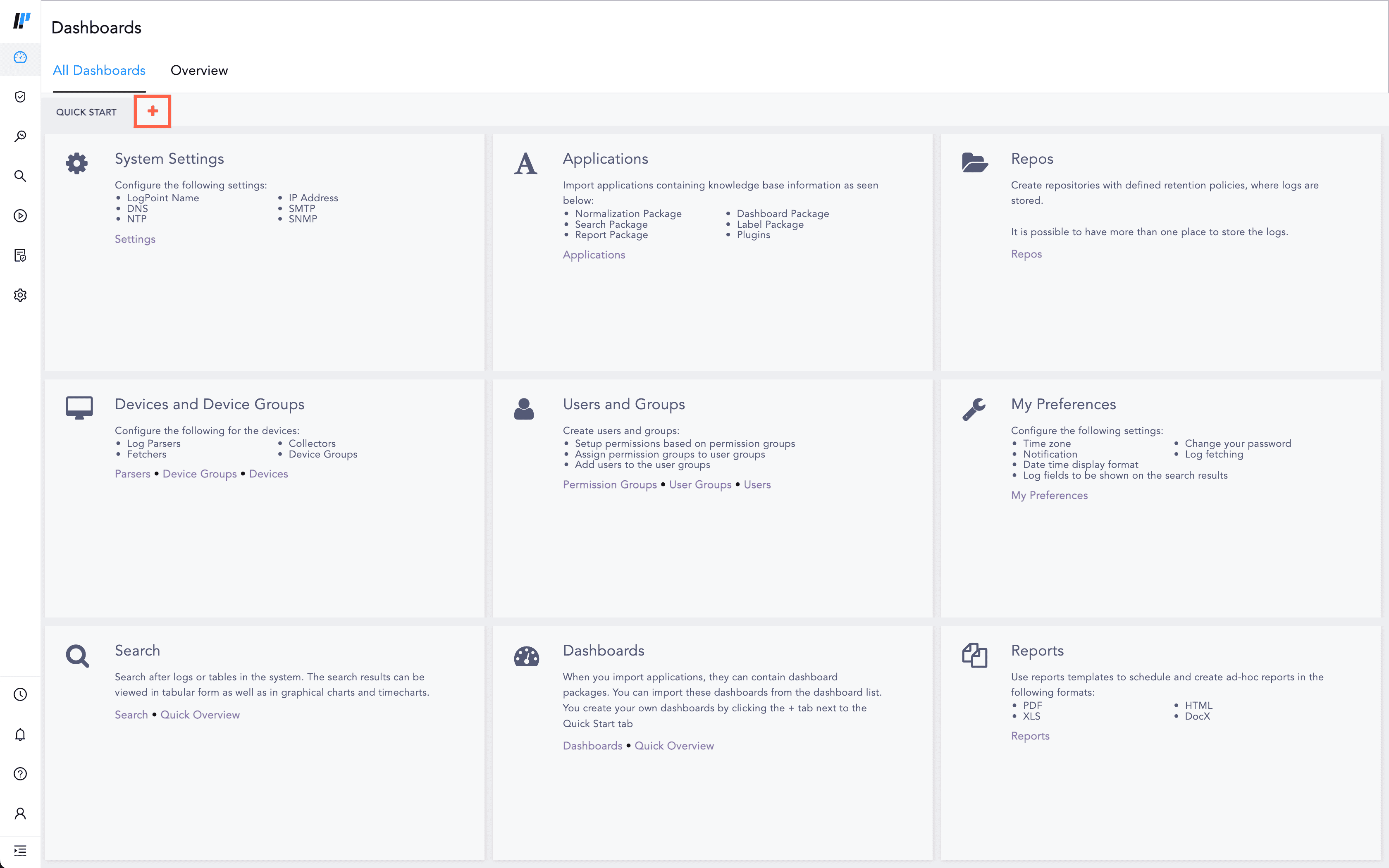
Adding a New Dashboard
Click on All Dashboards.
Click +.
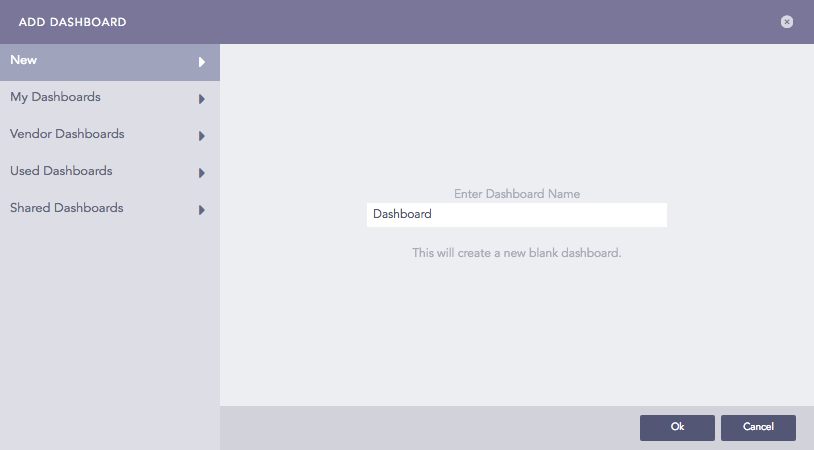
Adding a Dashboard
Enter the Dashboard Name. You can also pull dashboards from the tabs on the left.
Click Ok.
All Dashboards list all the dashboards created in the Logpoint and display the information of the widgets in each dashboard.
At the top left, you can switch among My Dashboards, Used Dashboards, Vendor Dashboards and Shared Dashboards from the drop-down.
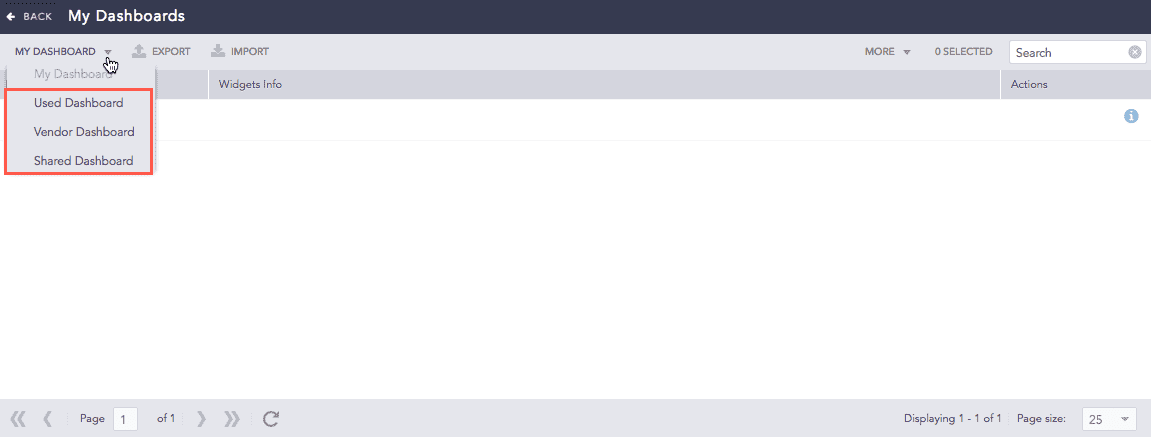
My Dashboards: The ones created by you. You can Clone, Share/Unshare, Lock/Unlock, and Delete these dashboards from Actions.
Used Dashboards: The ones you used.
Shared Dashboards: The ones shared between users. Click the Use icon from Actions to use it.
Vendor Dashboards: The ones included with Logpoint. Click the Use icon from Actions to use it. Click the Clone icon make a copy of the dashboard where you can apply changes.